I was replying to an email that I had been trying to write all morning the other day. Everything with the was ok until I saw at the end of it. My Outlook signature still maintained my old title. I had made updates weeks ago on LinkedIn, but somehow forgot my email signature. It is one of those little things that not all of us think about until someone calls it out or worse, we catch ourselves doing it upon clicking Send.
Maybe you’ve recently changed jobs. Perhaps you have a new phone number or a new site. Or perhaps you would simply want your emails to look slightly more professional.
No matter why, changing your Outlook signature is a straightforward process. The only thing a bit tricky is that the steps differ slightly depending on whether you are in Outlook on Windows, Mac, Web, or phone. So, let’s take them one by one.
Why You Might Want to Edit Your Outlook Signature
Your email signature is not just your name. Every email you send also has it, so keeping yours correct helps people get to you and makes a better impression.
Below are a few common reasons to update it:
- You changed your phone number.
- You started a new job.
- Now your company has just one website.
- You wish to include a company logo.
- Your current signature looks outdated.
- You have to set up different signatures for work and personal emails.
To be honest, it is not even a very long process. Once you do it, every email after that includes your new info.
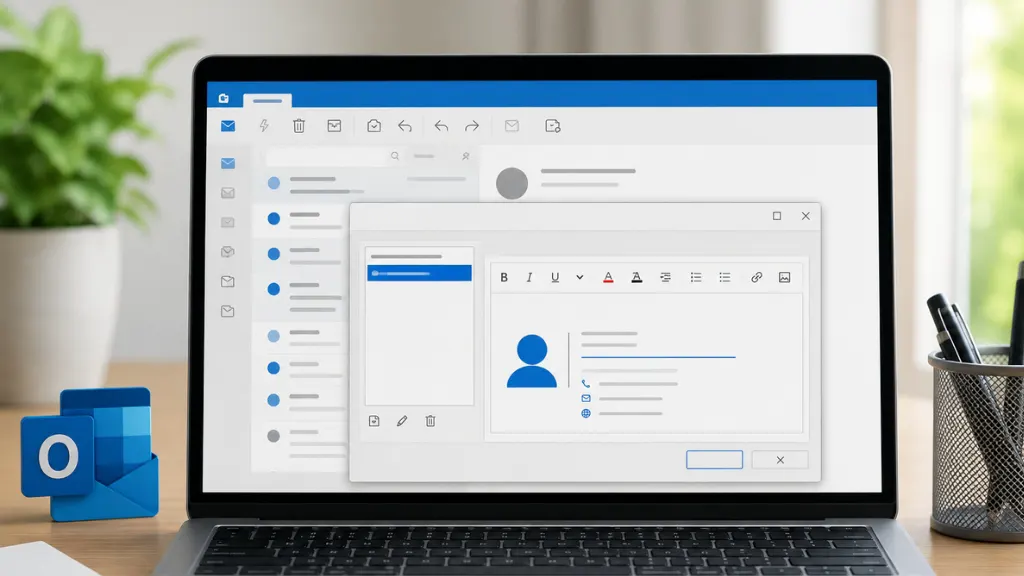
How to Edit Your Signature in Outlook on Desktop
Most users of Outlook use the desktop to send email and manage Outlook. So, if you use the Outlook desktop app on Windows, this is probably the version you’re looking for.
1) Launch Microsoft Outlook on your computer.
2) Open Outlook Options and click File in the upper-left corner. Then choose Options. A new window will open.
3) Open Signature Settings and Select Mail from the left menu. Next, click Signatures. This opens the Signatures and Stationery window.
4) Choose the Signature. If you’ve created multiple signatures, select the one you want to edit. If you don’t have one yet, click New to create a signature instead.
5) Update Your Signature. Now you can change anything you need.
For example:
- Full name
- Job title
- Company name
- Phone number
- Email address
- Website
- Social media links
- Logo or image
You can also adjust the font, colors, alignment, and formatting to match your style.
6) Save Your Changes by Clicking OK, and then click OK again to save everything.
Your updated signature is now ready for future emails.
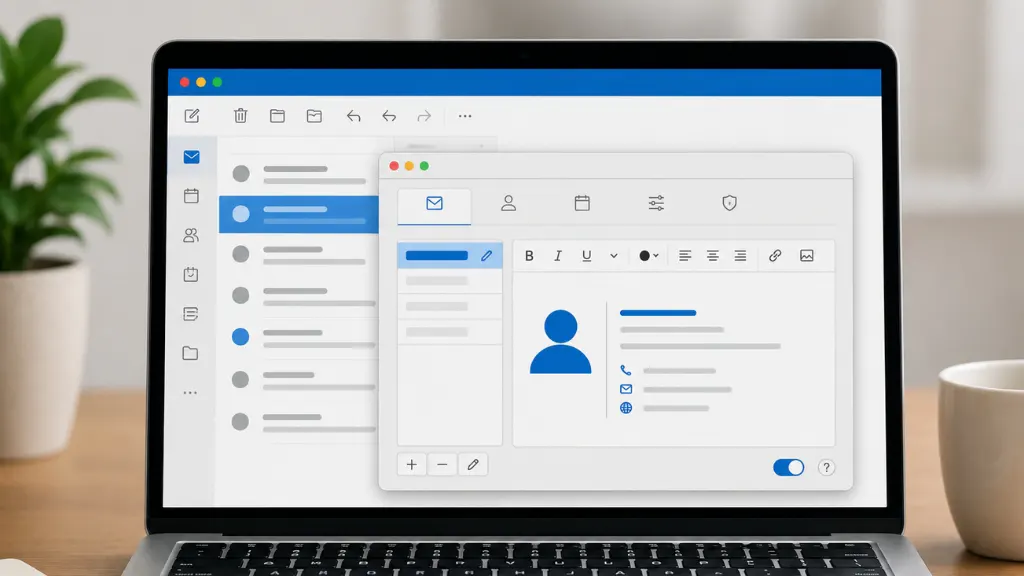
How to Edit Your Signature in Outlook on Mac
If you’re using Outlook on a Mac, the process is just as straightforward.
1) Open Outlook.
2) Go to Outlook > Preferences > Signatures.
3) Choose the signature you want to edit.
4) Update the information you want to change.
5) Click Save when you’re finished.
That’s all there is to it. The signature will be updated.
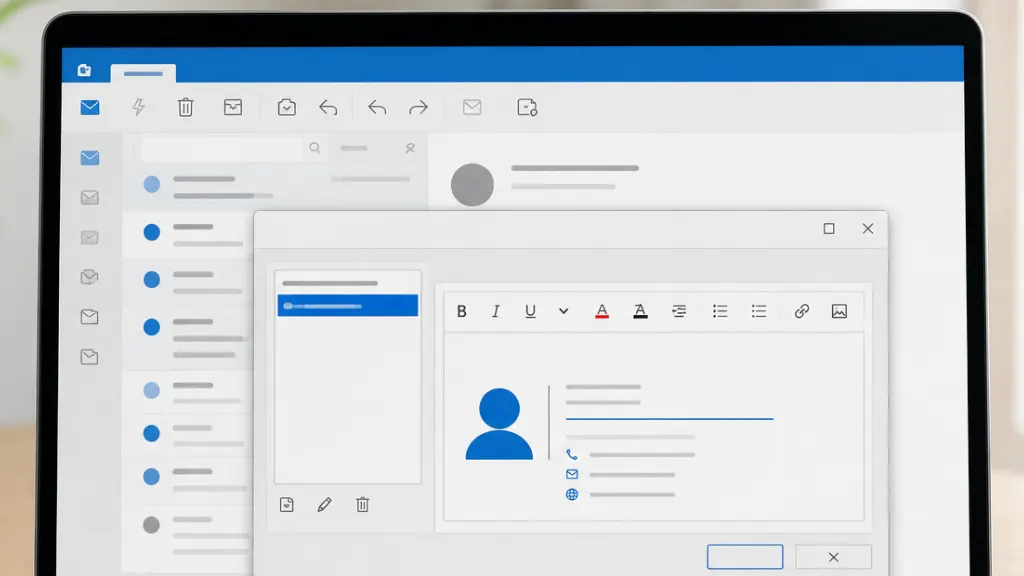
How to Edit Your Signature in Outlook on the Web
Outlook is mostly used for official purposes rather than personal use. So, if you usually check email in your browser, you can update your signature without installing anything.
1) Sign in to Outlook on the web.
2) Click the Settings icon in the top-right corner.
3) Select Mail, then Compose and Reply.
4) You’ll see your current signature in the editor.
5) Make any changes you need.
You can also decide whether Outlook should automatically include your signature in:
- New messages
- Replies
- Forwards
6) When you’re done, click Save.

How to Edit Your Outlook Signature on Android
Most people use Android phones. So, if you want to update or edit your signature, follow these steps. If you mostly reply to emails from your phone, it will help you. Here’s how you will update your signature on an Android mobile.
1) Open the Outlook app.
2) Tap your profile picture.
3) Go to Settings.
4) Tap Signature.
5) Edit the text.
6) Save your changes.
Keep in mind that the mobile app supports a simple text signature, so you won’t have all the formatting options available on a computer.

How to Edit Your Outlook Signature on iPhone
The steps are almost identical.
1) Open the Outlook app.
2) Tap your profile picture.
3) Open Settings.
4) Tap Signature.
5) Update the text.
6) Save your changes.
That’s all to change your Outlook signature on an iPhone.
Can You Add a Logo or Image to Your Outlook Signature?
Yes, you can. If you’re editing your signature from the desktop app or Outlook on the web, you can insert:
- Company logos
- Profile photos
- Social media icons
- Small promotional banners
A simple, clean logo usually looks much better than a large image. The goal is to make your emails look professional, not overcrowded.
Can You Have Multiple Outlook Signatures?
Absolutely. You can manage your Outlook signature with multiple signatures, like professional or personal, and this is an awesome feature of Outlook.
For example, you might create:
- Work Signature
- Personal Signature
- Support Team Signature
- Sales Signature
You can choose a default signature for new emails and another one for replies and forwards.
That way, you don’t have to change it every time you write an email.
Conclusion
Your Outlook Signature is one of those pesky little things that you never think about, but it shows up in every email you send. Refreshing them every few months also ensures that your contact details and emails are up to snuff.
Getting your email perfectly sorted is quite straightforward, as long as you know where to go in all the different versions of Outlook—whether on Windows, Mac, web or mobile. Now, open the app to quickly update your signature when checking it out again after a while.