The other night, I was on my Facebook checking a marketplace item. I was not intending to talk to anyone. I was literally looking at just one sundry, and leaving. About thirty seconds later, a friend messaged me, you are online! That little green dot was an instant giveaway.
How often that would happen is kind of funny. Which is why sometimes you just want to scroll Facebook, watch a few videos, and notifications or Marketplace, but without letting everyone see you’re online. Fortunately, Facebook allows us to do that.
Suppose you are looking for how to show offline on Facebook; you’re in the right place. Using Facebook itself on either mobile or web, the whole process only takes a minute from knowing where to find the setting.
Why Would You Want to Appear Offline?
Honestly, everyone has a different reason. Some people don’t want others expecting an instant reply every time they open Facebook. Others simply prefer a little more privacy while browsing.
A few common reasons include:
- Browsing Facebook quietly
- Checking Marketplace without appearing online
- Avoiding interruptions from messages
- Taking a break from conversations
- Using Facebook without the pressure to respond immediately
I’ve found that turning off Activity Status makes Facebook feel a lot less distracting.
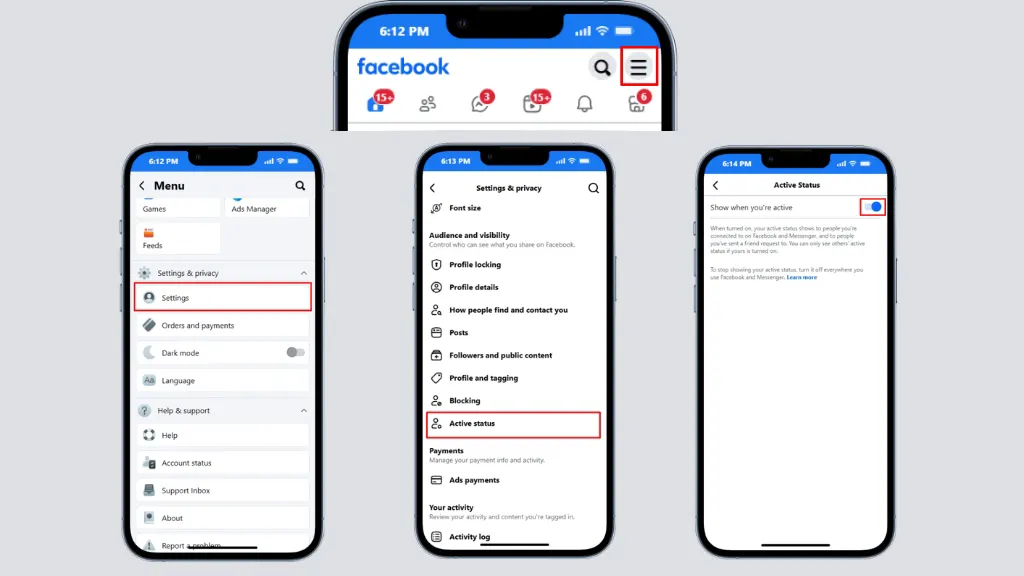
How Do You Appear Offline on Facebook on a Mobile
This is the setting you’re looking for. Facebook calls it Activity Status, and turning it off makes you appear offline to other people who would normally see when you’re active.
Here’s how to do it on your phone.
On Android and iPhone
- Open the Facebook app.
- Tap the Menu icon.
- Go to Settings & Privacy.
- Tap Settings.
- Scroll down and tap Activity Status.
- Turn off Show when you’re active.
- Confirm your choice if Facebook asks.
That’s it. Once the setting is off, the green active dot will no longer appear beside your profile where this feature applies.
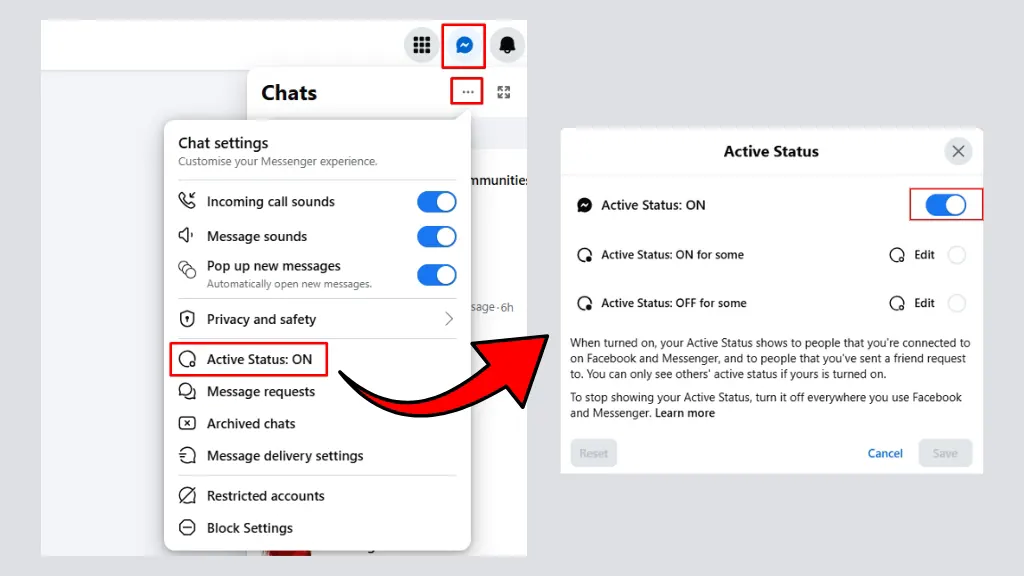
How to Appear Offline on Facebook on a Computer
If you use Facebook in a web browser, you can turn off your online status directly from the chat panel.
- Open facebook.com and sign in to your account.
- Look at the Messenger / Chat section on the right side of the screen (or click the Messenger icon in the top-right corner if the chat sidebar is hidden).
- Click the three-dot (•••) menu next to Chats.
- Select Active Status.
- Turn off Show when you’re active.
- Click Save if Facebook asks you to confirm.
Once this setting is turned off, the green active dot will no longer appear next to your profile, and other people generally won’t see that you’re currently online.
Conclusion
One of the simplest ways to make your account feel a little more private is learning how to appear offline on Facebook. If you want to go on Facebook without others knowing that you’re there, be it Marketplace, scrolling through your feed, or just taking a break from conversations, Activity Status can help you with this.
It takes one minute to change the setting, and in case you ever want back that green dot, you can absolutely turn it on again. If you are someone who wants a little extra privacy while surfing, then it’s definitely important to know where this option is kept hidden.