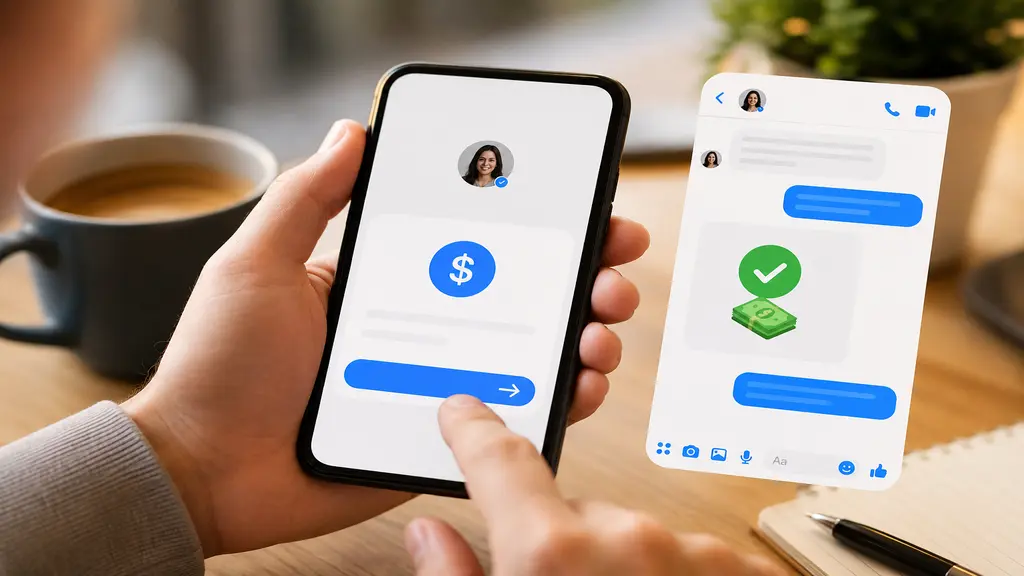
Okay, real talk — the first time someone told me you could send money on Facebook, I didn’t believe them. Felt like one of those “my cousin’s friend said” internet rumors. Then a friend paid me back for movie tickets right inside our Messenger chat, and I had to figure out how to send money on Facebook myself that same night. Turns out it’s built into Messenger and Facebook Pay, and once you’ve done it once, you kind of wonder why you didn’t try it sooner. No app-hopping. No texting your bank account number to a friend and hoping they type it right. Just… open the chat and pay. This guide covers how to send money on Facebook step by step, what you need before you even start, and a handful of things people mess up the first time (I made at least one of these mistakes myself, so don’t feel bad if you do too).
Why People Use Facebook to Send Money
Here’s the thing — most of us are already living inside Messenger half the day anyway. Chatting, sending reels, planning the weekend, arguing about where to eat. It’s basically become the default place where small everyday stuff between friends and family already happens. So Facebook figured, why not let money move through that same window too, instead of pushing everyone out to some separate app?
- Convenience: You’re not switching apps or hunting down someone’s bank details in an old text thread. It’s the same chat you already had open.
- Speed: Money usually shows up in minutes. Not “next business day,” minutes.
- No sneaky fees for regular transfers: Pay with a linked debit card or bank account and, most of the time, it doesn’t cost you anything extra.
- Zero learning curve: If you can type “lol” into Messenger, you can basically figure out how to send money on Facebook without a tutorial. This guide is really just here for the small details.
What You Need Before You Start
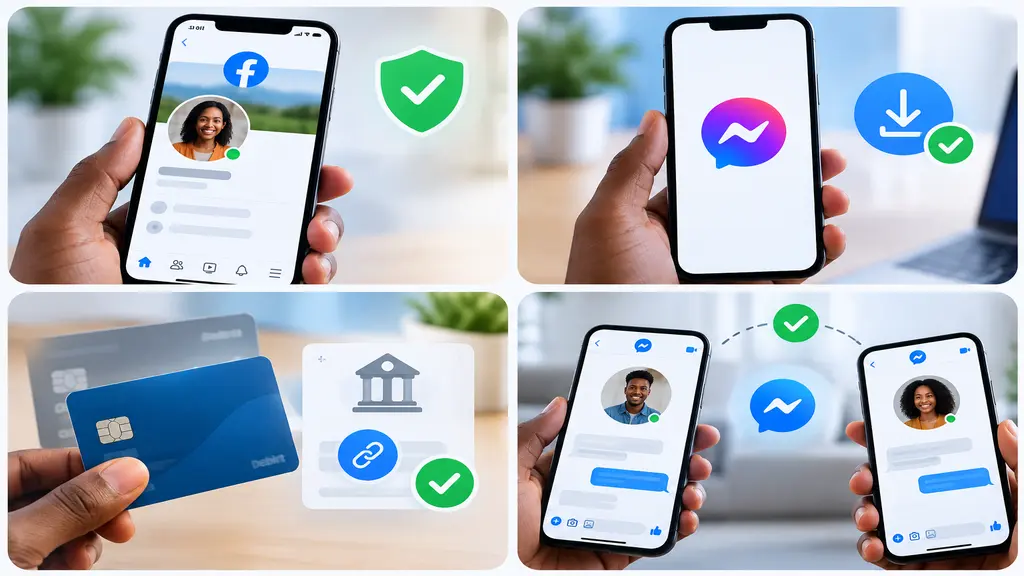
Skip this part and you’ll get halfway through and hit a wall — trust me, I’ve been there. Nothing complicated here, just a few small things Facebook expects to be in place before it lets any money move. Get these sorted first and the actual sending part takes seconds.
- An account that’s not flagged for anything weird: If your Facebook account has been flagged recently for suspicious activity, Pay features sometimes get locked temporarily until things clear up.
- Messenger installed: Not just the Facebook app — the actual Messenger app, since that’s where the payment tools live.
- A linked debit card or bank account: Credit cards typically don’t work for these person-to-person payments, so don’t bother trying, you’ll just get an error.
- The other person needs Messenger too: Both sides of the chat need active accounts, or the transfer simply won’t go through.
How to Send Money on Facebook (Step-by-Step)
Alright, here’s the actual walkthrough — the part you probably came here for. It looks like a lot written out, but in practice it’s maybe fifteen seconds once you’re used to it. Follow these in order and you shouldn’t run into any surprises.
- Open Messenger and pull up the chat with whoever you’re paying.
- Tap the + icon near the message box (on some phones it shows up as a dollar sign instead).
- Hit Payments, then type in the amount.
- Pick your funding source — your linked card or bank account.
- Toss in a quick note if you want, like “for pizza” or “rent split.” Not required, but it saves an awkward “what was this for?” text later.
- Tap Pay and confirm with your PIN, fingerprint, or Face ID.
And that’s genuinely the whole process. Assuming the other person already has their Pay account set up, the money lands pretty quickly — usually within a few minutes.
Setting Up Facebook Pay for the First Time
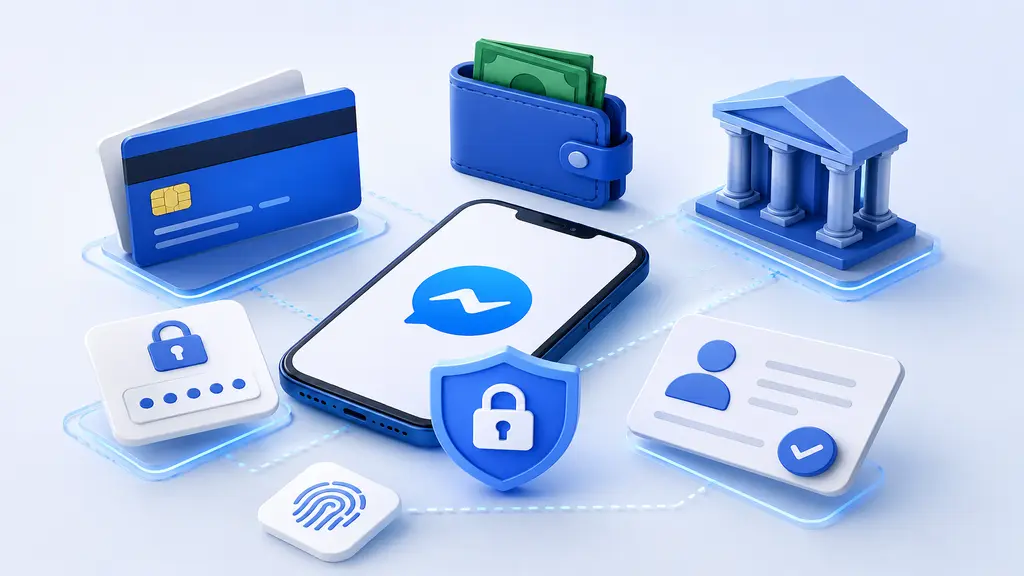
First time doing this? Facebook makes you set up Pay before you can send a single taka or dollar. It’s a one-time thing, not something you’ll have to repeat every time you want to pay someone. Takes maybe two minutes if you’ve got your card details handy, less if you’ve already saved them elsewhere on your phone.
- Add a payment method: Head into Messenger settings, tap Payments, and link either a debit card or bank account.
- Set a security PIN: This is your safety net — without it, anyone who gets into your phone could technically send money as you.
- Verify your identity: Depending on where you live, Facebook might ask for phone number confirmation, sometimes basic ID verification, especially before larger transfers.
- Confirm your billing address: It needs to match your card, or transactions can bounce for no obvious reason.
Do this once and you’re set. Every payment after that takes maybe ten seconds, no re-entering card details or going through verification again. It genuinely becomes background noise once it’s set up right.
Common Mistakes to Avoid
Learned some of these the hard way, so let’s save you the trouble. None of them are disasters, exactly, but they’re annoying enough to slow you down or make you second-guess whether something’s broken. Worth keeping in mind before you send anything.
- Sending it to the wrong chat: Facebook doesn’t shout a big warning at you, so double-check that you’re using the correct Facebook account and the right person before hitting Pay.
- Trying to use a credit card: It’ll just fail. Every time. Switch to debit or a linked bank account instead.
- Assuming it works everywhere: Facebook Pay hasn’t rolled out to every country yet, so if none of these buttons are showing up for you, that might be why.
- Forgetting your PIN: It happens. Resetting it through Messenger’s security settings usually takes a day or two, so don’t wait until you urgently need to send someone money to remember it.
Is It Safe to Send Money on Facebook?
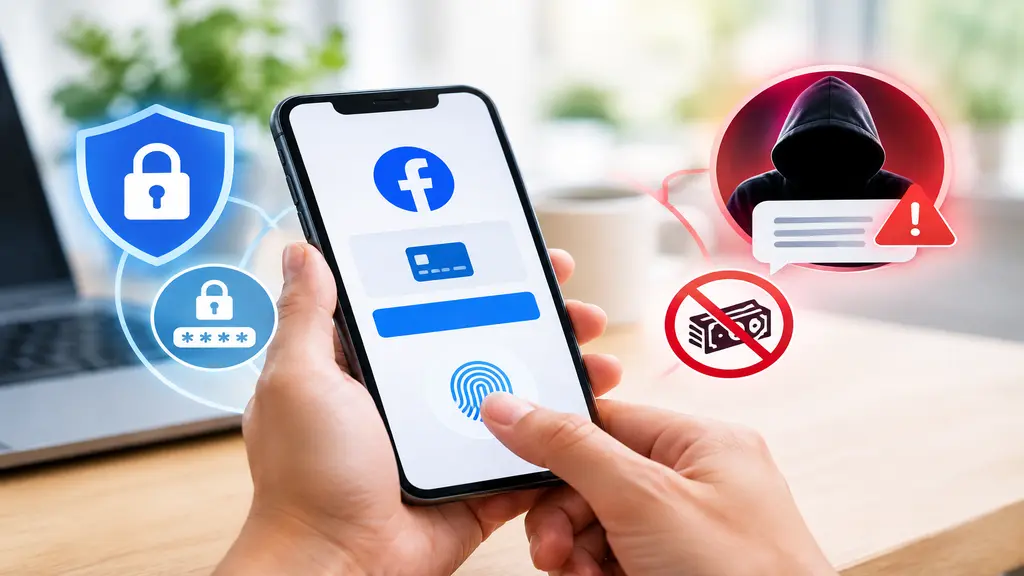
Fair question, honestly — it’s your money we’re talking about. Facebook Pay encrypts transaction data and requires PIN or biometric confirmation before anything actually sends. That part’s solid.
Where people run into trouble is usually less about Facebook’s security and more about who they’re sending to. Marketplace scams are real — someone pushing you to pay before you’ve even met up or confirmed the item. So, the rule of thumb: only send money to people you genuinely know. And never hand your PIN to anyone claiming to be “Facebook support” in a chat — real support won’t ask for it.
Conclusion
So yeah — learning how to send money on Facebook really isn’t the big deal it sounds like. Set it up once, and every payment after is a few taps inside a chat you were already having. Double-check who you’re sending to, skip the credit card, keep that PIN to yourself. First time feels a little unfamiliar. After that, it’s basically muscle memory.