Facebook started to behave strangely on my phone a few weeks ago. It loaded videos really slowly, notifications arrived late, and the Messenger button on my home screen appeared different than what my friend had on his phone. I legitimately thought this was just one of those random bugs on Facebook. Then I checked the App Store. There was an update waiting.
I downloaded, opened the app again, and almost everything was back. This is when I realized I came totally unaware of how many people forget Facebook. We use the app daily, yet after installation we seldom think to check if it is running the most up-to-date version.
This guide walks through updating Facebook on your Android, iPhone, and even in Facebook Messenger if you have been on the hunt for how to update Facebook. This takes a minute and can fix a fair amount of things.
Why You Should Update Facebook
Most updates aren’t just about adding new features. They usually fix bugs, improve security, make the app faster, and keep Facebook compatible with the latest version of Android or iOS.
A few signs that you might need an update:
- Facebook keeps crashing
- Videos won’t play properly
- Notifications arrive late
- Messenger features look outdated
- The app feels slow
- You’re missing new Facebook features
Honestly, checking for an update is one of the first things I do now whenever Facebook starts behaving strangely.
How Do You Update Your Facebook?
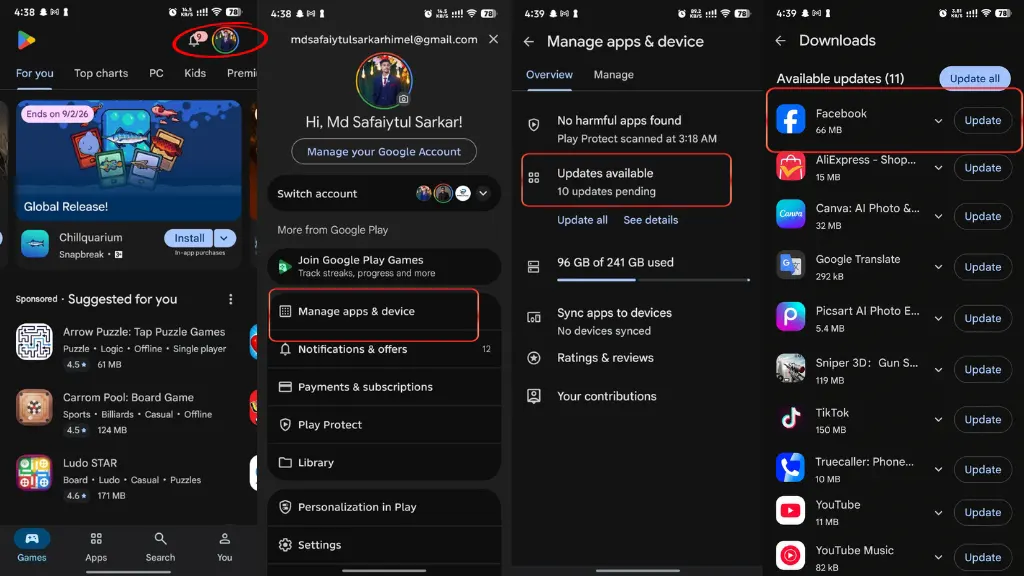
If you’re using an Android phone, updating Facebook is pretty straightforward.
1) Open the Google Play Store.
2) Tap your profile picture in the top-right corner.
3) Choose Manage apps & device.
4) Tap Updates available.
5) Look for Facebook in the list.
6) Tap Update.
If you don’t see Facebook listed, it usually means you’re already using the latest version.
One small thing I’ve noticed is that Play Store updates can sometimes appear a little later in different regions, so if your friend has a newer version, it doesn’t always mean something is wrong with your phone.
Upgrade Facebook Application on iPhone
Follow these steps to update your Facebook on iPhone, here’s the current process:
1) Open the App Store.
2) Tap your profile icon in the top-right corner.
3) Scroll down to Available Updates.
4) Find Facebook.
5) Tap Update.
Once the update finishes, open Facebook again. iPhones can also update apps automatically, so sometimes Facebook gets upgraded without you even noticing.
How Do You Update Facebook Messenger?
A lot of people update Facebook but forget that Messenger is a separate app.
Messenger has its own updates, features, and bug fixes.
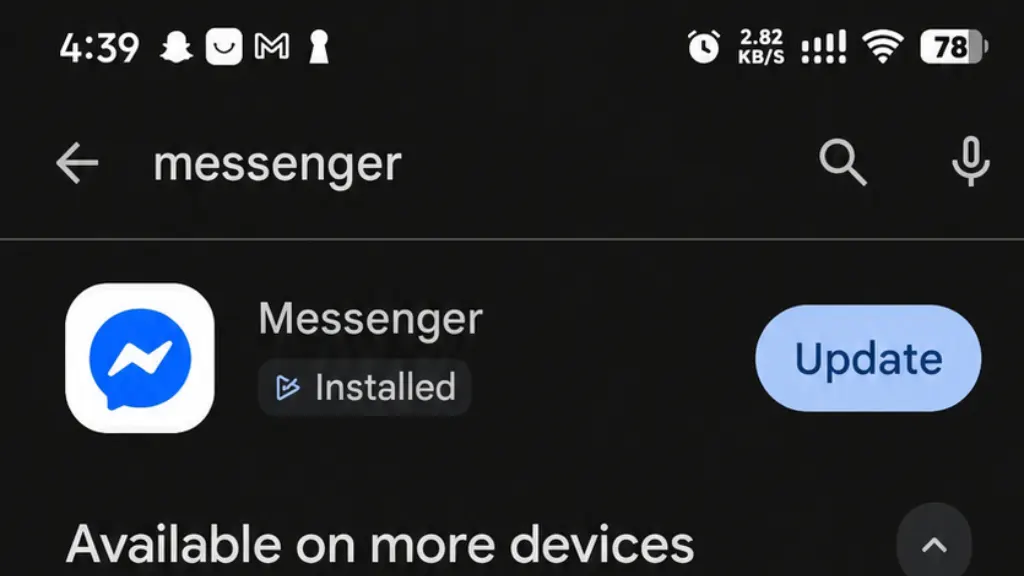
On Android:
1) Open the Google Play Store.
2) Search for Messenger.
3) Tap Update if it appears.
On iPhone:
1) Open the App Store.
2) Search for Messenger.
3) Tap Update.
If Messenger has been giving you problems with calls, reactions, disappearing messages, or notifications, updating it is usually worth trying before doing anything more complicated.
Conclusion
Update Facebook is the sort of low-level hack that solves dozens of annoying app issues. When Facebook is down, lagging, or lacking new features, downloading the most recent version typically takes no longer than a minute.
The same goes for Messenger. Since Messenger is its own app—separate from Facebook—updating both apps can help keep bugs at bay, performance optimized, and you updated to the latest features as soon as they become available.
If you have not checked in a while, it would likely be worth launching the Play Store or App Store right now to see if an update is awaiting you.