A couple of days back, someone emailed me a PDF which I needed to edit. So I loaded up the file on my Mac with the expectation of making a minor change, but ended up clicking around wondering where the edit functionality was. Initially, I thought, did I have to download another app? Turns out, I didn’t.
If you ever searched on Google how to edit a PDF file on Mac, you might be facing the same problem. Perhaps you require changing some text, signing a document, making your emphasis very clear, filling in an application form, and adding some notes before sending it back.
The silver lining is that your Mac comes with tools you can use to do some basic PDF editing. More advanced edits may involve something else, and there are a few other options that you will want to know about. I will guide you through it, click by click.
Can You Edit a PDF on a Mac?
Yes, you can. Exactly what you can edit depends on the type of PDF you’re working with.
For example, you can easily:
- Add text
- Highlight text
- Underline or strike through text
- Draw shapes
- Add comments
- Sign documents
- Fill out PDF forms
- Rearrange, rotate, or delete pages
However, changing the original text inside a professionally created PDF isn’t always possible with Apple’s built-in tools. For that, you’ll usually need dedicated PDF editing software.
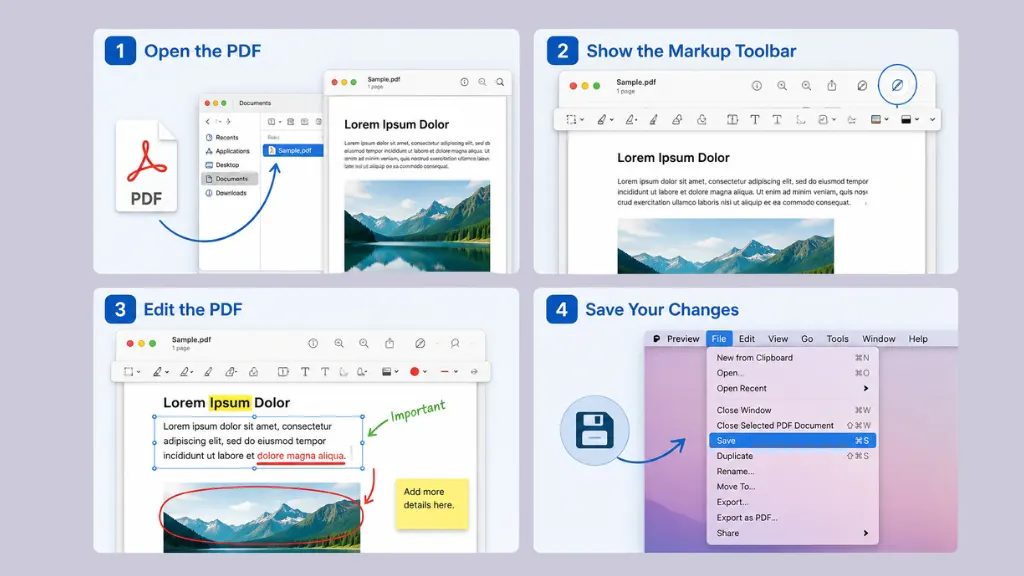
How Can You Edit a PDF on a Mac
Most Mac users already have everything they need. Preview comes pre-installed with macOS, and it’s surprisingly useful for everyday PDF editing.
1) Open the PDF
Find your PDF.
Double-click it.
If Preview is your default PDF viewer, the document opens automatically.
If it opens somewhere else, right-click the file.
Choose:
Open With → Preview
2) Show the Markup Toolbar
Look near the top of the Preview window.
Click the Markup button.
A toolbar appears with editing tools.
This is where most of the useful options are.
3) Edit the PDF
Depending on your document, you can:
- Add text boxes
- Highlight sentences
- Underline text
- Draw shapes
- Insert arrows
- Add comments
- Sign the document
- Add your signature using the trackpad, camera, or iPhone
For everyday edits, Preview does a great job.
I’ve used it countless times just to sign contracts or leave comments on documents without installing anything else.
4) Save Your Changes
When you’re finished, simply save the file.
Preview automatically keeps your edits.
If you want to preserve the original document, choose File → Duplicate before making changes.
That gives you a copy to edit while leaving the original untouched.
How to Add Text to a PDF on Mac
Need to add a few words?
1)Open the PDF in Preview.
2) Open the Markup Toolbar.
3) Choose the Text tool.
4) A text box appears.
5) Click inside it and type whatever you need.
You can also change:
- Font
- Font size
- Text color
- Alignment
Just remember that you’re adding a new text box. You’re not replacing the existing printed text inside the PDF.
Conclusion
Editing PDF files is easier than many people realize, even on a Mac. For basic actions such as making notes, signing documents, highlighting text or arranging pages, Preview contains virtually all the functions most users require – with the exception of batch conversion.
If you intend to fully rewrite the original content of a PDF, more sophisticated software is usually required. However, for the majority of routine jobs, your Mac is all set with Edit—no downloads required. Next time someone sends you a PDF that needs some quick changes, you’ll know right where to begin.