
Few weeks back I was updating an excel sheet that my team had been using for as long as months. It was all good then I click one of the dropdown lists. When the new image was still bowing to an employee months ago that had left the company. Upon clicking the cell, I imagined typing in a new name but nothing happened. I wasn’t able to directly edit the list. For a second I sincerely believed that the spreadsheet was malfunctioning. It wasn’t.
The Excel drop-down lists behave in a slightly different way than normal cells. Updating the list only takes a few minutes once you know where it is coming from. So, if you are looking for how to edit a drop down list in Excel. Whether you want to add new items, delete previous ones or clear it completely, I will show you how exactly.
Why Would You Need to Edit a Drop Down List?
Drop-down lists help keep spreadsheets organized and prevent typing mistakes. But sooner or later, most of them need updating.
Some common reasons include:
- Adding new products
- Removing outdated options
- Updating employee names
- Changing project statuses
- Fixing spelling mistakes
- Reordering the list
The good news is you usually don’t need to create a brand-new drop-down list. Most of the time, you only need to update the source behind it.
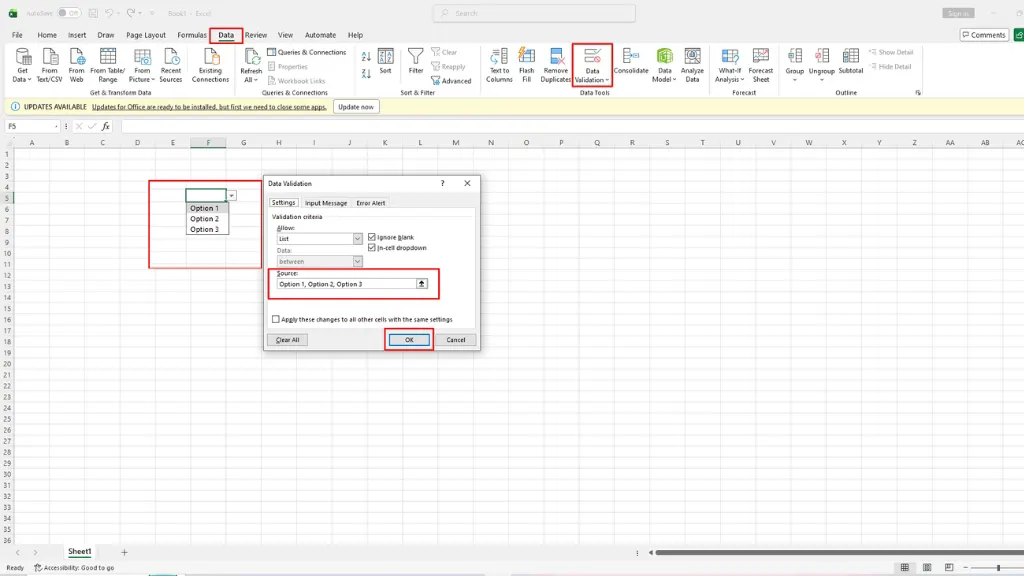
How to Edit a Drop Down List in Excel
The exact steps depend on how the drop-down list was created. Most Excel drop-down lists use Data Validation, so let’s start there.
1) Open Your Excel Workbook
Open the spreadsheet that contains the drop-down list. Find one of the cells that uses the list.
2) Open Data Validation
Click the cell with the drop-down.
Go to the Data tab.
Then click Data Validation.
A small window will appear.
If the drop-down list was created using Data Validation, you’ll see the settings here.
3) Check the Source
Click the Settings tab.
Look for the Source box.
This tells Excel where the drop-down options come from.
It might show:
- A range of cells
- A named range
- A list typed directly into Excel
This is the most important part of the whole process.
If the List Uses Cell References
This is probably the most common setup.
For example, the Source might look something like:
=$A$2:$A$10
That means Excel is pulling the options from those cells.
Simply go to that location.
You can:
- Add new items
- Remove old items
- Correct spelling
- Rearrange the order
The drop-down list updates automatically.
Honestly, this is usually the easiest type of drop-down to manage because everything stays connected.
If the List Was Typed Manually
Sometimes you’ll see something like this inside the Source box:
Pending,Approved,Rejected
Instead of referencing cells, Excel stores every option directly inside the Data Validation settings.
To edit it:
Delete the old text.
Type the updated list.
Separate each option with commas.
Click OK.
That’s it.
Common Mistakes People Make
Editing drop-down lists is fairly simple, but a few things can cause confusion.
Editing the Drop Down Cell Instead of the Source
Many people click the drop-down cell and try typing over it. That changes the value in the cell, not the options inside the list. Always edit the source.
Forgetting to Expand the Source Range
You add a new item. But it doesn’t appear. Usually that’s because the source range still ends before the new row. Updating the range fixes the problem.
Deleting the Source List
If someone accidentally deletes the cells containing the source values, the drop-down may stop working correctly. It’s worth knowing where those source lists are stored before making major changes.
Conclusion
The reason being, if you understand where the data for the drop down list comes from then making edits to it becomes a cake walk. Regardless of whether the options originate from a cell range, manually entered list or named range, you generally only need to change the source without rebuilding drop down from scratch.
So now when your Excel lists needs another option, or an old value removed, you’ll know exactly where to look! Updating those lists makes your spreadsheets easier for everyone, and it takes a few minutes only.