A few weeks ago, I logged into my Gmail to finally confront something that had been looming over me for months — thousands of unread emails. Newsletters I never read, shopping proposals from years ago, ancient notifications; it was chaos. I started clicking my emails one at a time, and after two minutes or so I thought surely there was a better way. Turns out there is.
If you have ever typed in “How do I bulk edit my Gmail inbox”, chances are you’re looking for a way to get your emails organized without spending your entire afternoon doing so. The good news is Gmail already has the tools available to you. You only have to know where they are.
Whatever it is you want to delete an email, archive an email, mark as read an email or even try at once to move all the emails of a folder or apply liberation in hundreds of messages; I’ll go through the easiest methods with you.
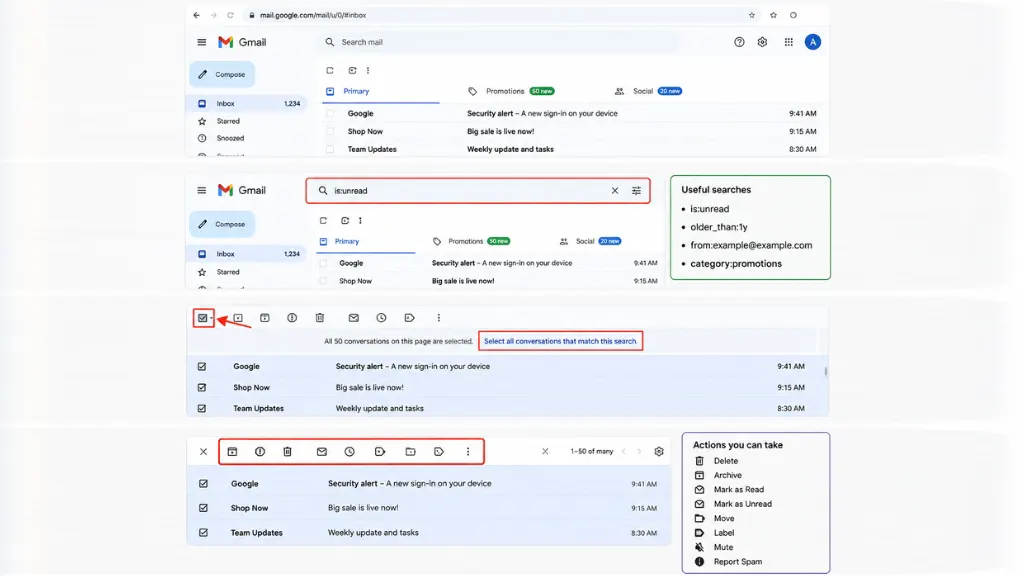
How to Bulk Edit Your Gmail Inbox on a Computer
This is the easiest way because you can see more emails at once.
1: Open Gmail
Go to Gmail in your web browser and sign in to your account.
2: Find the Emails
Use the search bar if you already know what you’re looking for.
Some useful searches are:
- is:unread
- older_than:1y
- from:example@example.com
- category:promotions
These filters help narrow things down before you start selecting emails.
3: Select Multiple Emails
Click the small checkbox above your email list. Gmail will automatically select every conversation shown on the current page. If there are more emails than fit on one page, Gmail displays another option saying you can select all matching conversations. Click it if you want every matching email selected, not just the first page.
4: Choose What You Want to Do
Now simply click the action you need.
You can:
- Delete
- Archive
- Mark as Read
- Mark as Unread
- Move
- Label
- Mute
- Report Spam
Gmail applies the action to every selected conversation.
Honestly, this is the feature that saves the most time. Instead of deleting 500 emails individually, you can finish the job in a few clicks.
How to Bulk Edit Gmail on Your Phone
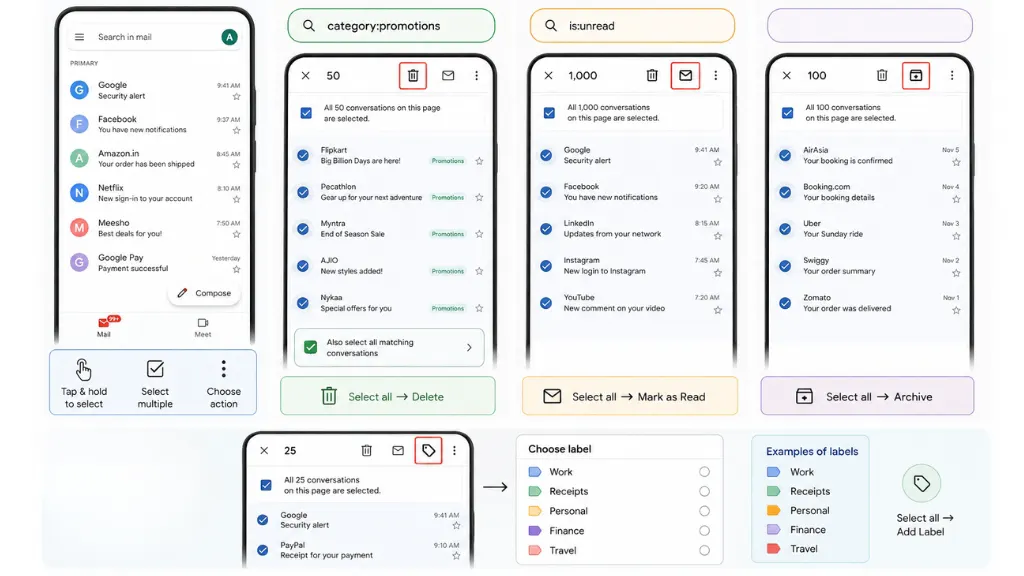
Many people attempt to do it all from their phone, but here is something you need to know. The Gmail mobile app lacks the bulk editing tools we’re used to on the desktop. You can choose multiple e-mails onscreen by prodding and holding one message, then tapping the rest, however you are unable to opt for each email in a hunt outcome all at once just as you could on the PC. Using Gmail in a browser on your computer will be much faster if you are cleaning hundreds or thousands of emails.
Bulk Delete Promotional Emails
Promotional emails tend to pile up quickly. Here’s an easy way to clear them.
1) Search:
2) category:promotions
3) Select all the conversations.
4) Then click the Delete icon.
If Gmail tells you there are more matching conversations, choose the option to select them all before deleting.
It’s one of the quickest ways to free up space without touching your important emails.
Mark Thousands of Emails as Read
Sometimes your inbox isn’t messy—you just have thousands of unread messages.
1) Search:
2) is:unread
3) Select the emails.
4) Then click Mark as Read.
Your unread count drops almost instantly.
Archive Emails Instead of Deleting Them
Not everything needs to be deleted. If you think you might need the emails later, archive them instead. Archived emails disappear from your inbox but remain searchable whenever you need them again. It’s a good option for receipts, travel confirmations, and older conversations you don’t want cluttering your inbox.
Add Labels to Multiple Emails
Labels make Gmail much easier to organize.
For example, you could create labels like:
- Work
- Receipts
- Personal
- Finance
- Travel
After selecting multiple emails, click the Label button and choose the label you want to apply.
Everything gets organized in one go.
Conclusion
Discovering how to bulk edit your Gmail inbox can actually save you a ton of time. The Undo Send feature is pretty powerful too. But once you figure out where to find the tools, it makes deleting old newsletters or labeling those several work emails much simpler and easier (or marking hundreds of messages as read).
If your inbox has been getting too crowded for comfort, take a few minutes and try these steps. A clutter-free inbox not only looks better but also allows you to find the right emails easily.