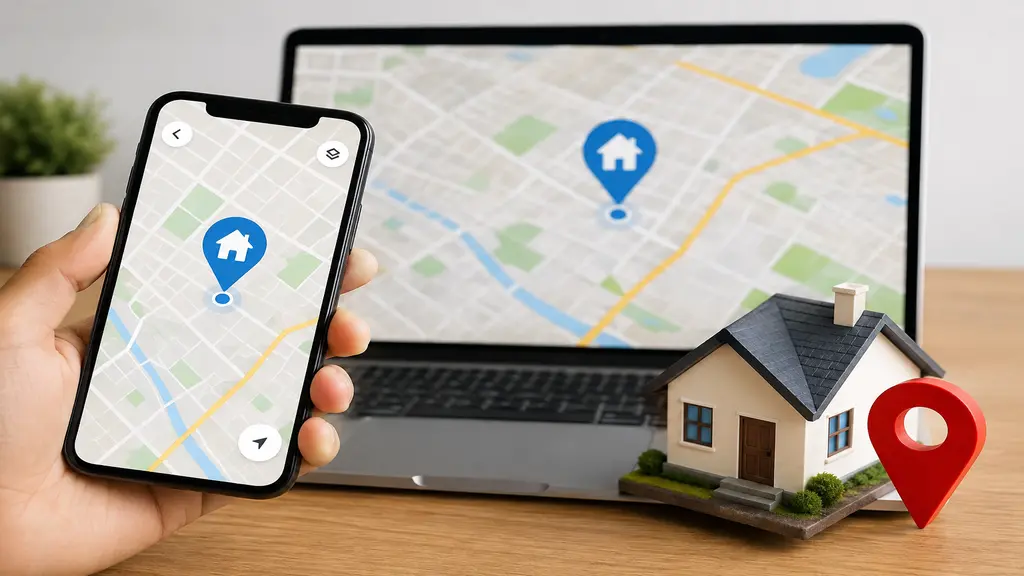
A delivery guy once called me, sounding pretty confused, even though my address was sitting right there in Google Maps. Turned out my home pin was just wrong. Happens more than people think. So, if you’re wondering how to edit home on Google Maps, good news, it only takes a couple of minutes. The annoying part is most of us set it once, forget about it, and never check again even after moving to a new place. Maybe you shifted houses recently. Maybe the pin was off from the start, and nobody noticed. Or maybe you just never bothered adding a home address at all. Either way, here’s the fix, phone and computer both, no confusing tech talk.
Why Bother Fixing Your Home Pin on Google Maps
Feels like a small thing, I know. But it quietly touches more of your apps than you’d guess.
- Directions get faster: Tap home from wherever you are, done. No typing the same address for the hundredth time.
- Deliveries stop going to strangers: A lot of food and ride apps just pull this from your Google account behind the scenes. Wrong pin, wrong door, awkward for the driver and you.
- Nearby suggestions get better: Weather, shops close by, traffic near your place, this stuff quietly leans on your saved home spot too.
- Family location sharing actually works right: If anyone’s tracking your live location through Maps, “home” should mean your actual house, not somewhere three streets off.
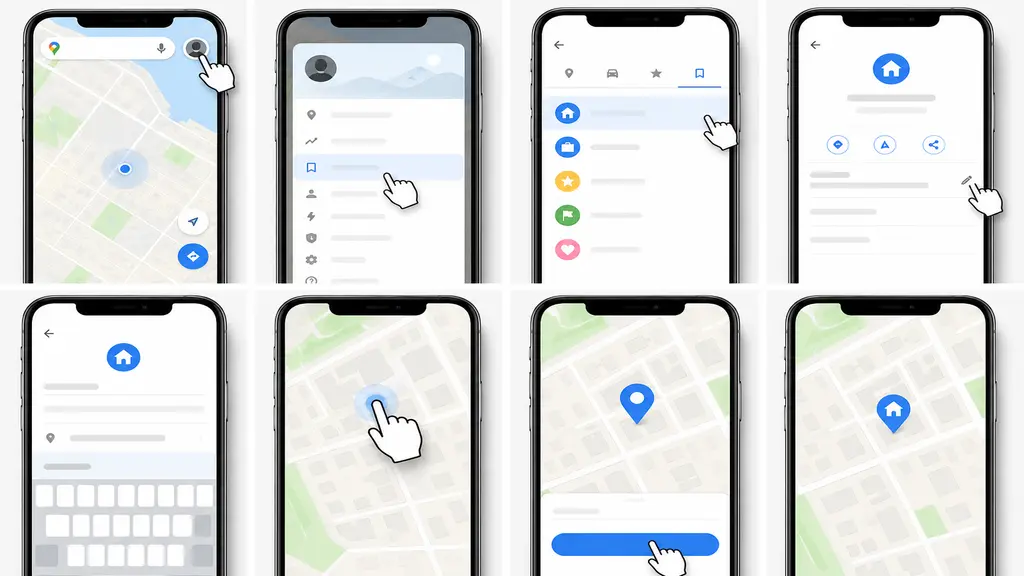
How to Edit Home on Google Maps on Your Phone
Most people will do this on their phone honestly, so let’s start here. A few taps, that’s it.
- Open Google Maps.
- Tap your profile photo, top right.
- Tap “Your places.”
- Go to the Labelled tab, you’ll see Home, Work, whatever else you’ve saved.
- Tap Home. Nothing there yet? It’ll say “Add” instead.
- Type the address, or skip that and just tap-hold the right spot on the map.
- Maps saves it instantly, no extra popups asking again.
If the search keeps showing the wrong building no matter what you type, stop fighting it. Just zoom in and drag the pin by hand onto your actual roof. Works better anyway in newer areas where Google’s map data is still catching up.
How to Edit Home on Google Maps from a Computer
Some people just like a bigger screen for this stuff. Fair enough. Same idea, slightly different layout.
- Go to maps.google.com, log in with the same account your phone uses.
- Click the menu icon (three lines, top left).
- Click “Your places.”
- Labeled tab, then click Home.
- Search the address, or click the map directly and drag the marker yourself.
- Hit Save.
That’s the whole thing really. Give it a minute or two and your phone picks up the change on its own, no need to redo anything there.
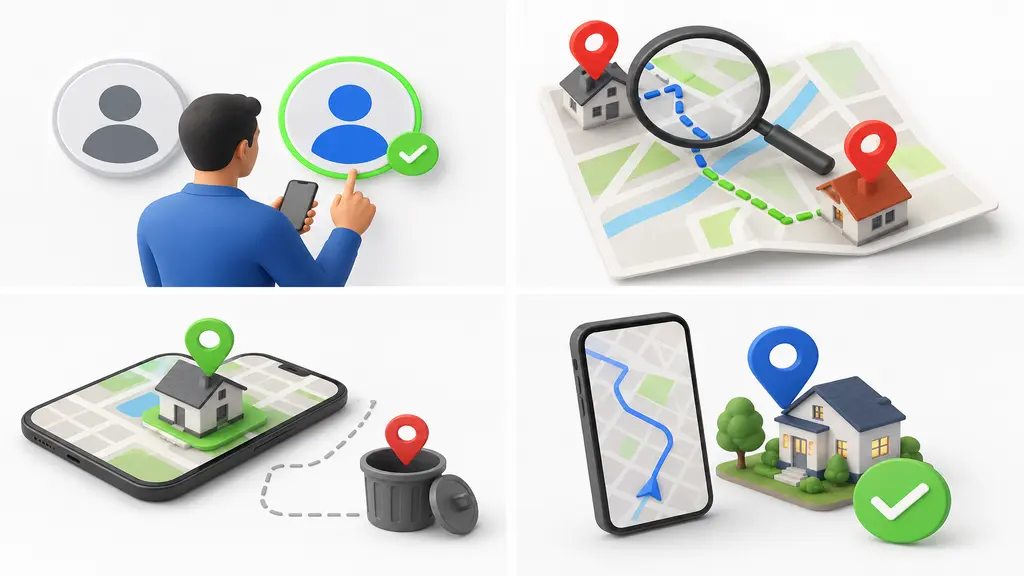
Mistakes People Keep Making with This
Few small things trip people up way more than they should.
- Editing the wrong Google account: Got two or three Gmail accounts? Make sure you’re fixing the one your daily apps actually use.
- Trusting autocomplete blindly: Sometimes it looks right but lands on the wrong entrance or driveway. Check the map preview, takes two seconds.
- Leaving an old address hanging around: Moved recently? Make sure the old place isn’t still saved as “Old Home” somewhere, confuses directions later.
- Never checking if it actually worked: Just search “directions to home” right after. Lands on your house? Good, you’re done.
When the Address Is Right but the Pin Isn’t
Sometimes your written address is totally fine, but the little marker’s sitting across the street, or worse, on your neighbour’s roof. Weird glitch, but easy fix. Same trick works here, skip retyping the address and just drag the pin by hand to where your house actually is. Google keeps that correction going forward too, so it won’t guess wrong again next time.
Conclusion
Doesn’t take long, this whole thing. But it clears up a bunch of small annoyances, wrong deliveries, confused drivers outside the wrong gate, directions that never quite land right. Now you know how to edit home on Google Maps, on phone or laptop either way. Worth thirty seconds today just to double-check yours is actually right. Small fix now, fewer headaches later.