One night, a friend messaged me wondering why I didn’t reply. What was funny about it is I had only opened Facebook for a minute to check a notification. My green active dot apparently indicated that I was online and therefore ignoring his message. It was then that I saw just how much Facebook allows others to know when you’re active. Sometimes that’s fine. And sometimes you just want to browse your feed, visit Marketplace, and watch a few videos without everyone knowing you are online.
Here, you can learn how to turn off activity status on Facebook if you were looking for that. Whether you do it on Facebook with your phone app or on Facebook from your PC, the process only takes a few seconds. Let’s walk through it together.
What Is Facebook Activity Status?
Activity Status is the feature that shows when you’re currently online or when you were recently active.
When it’s turned on, your friends and contacts may see:
- A green dot beside your profile picture.
- That you’re currently active.
- When you were recently active on Facebook or Messenger (depending on your settings).
Turning it off gives you a little more privacy while using Facebook.
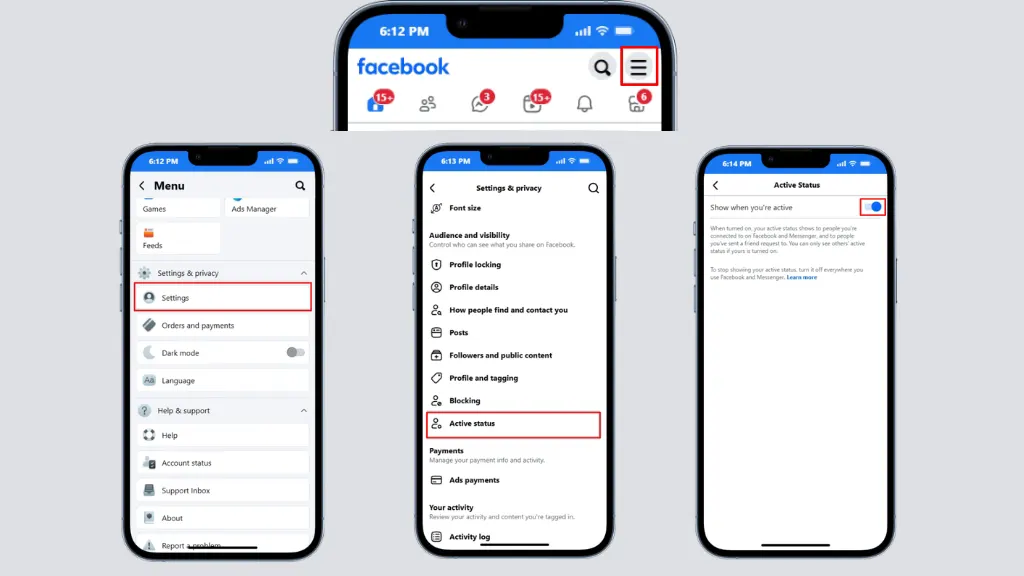
How to Turn Off Activity Status on Facebook Using the Mobile App
If you mainly use Facebook on your phone, here’s what to do.
1) Open the Facebook App
Launch the Facebook app on your Android or iPhone. Make sure you’re signed into your account.
2) Open the Menu
Tap the Menu icon. Depending on your device, you’ll usually find it in the bottom-right or top-right corner.
3) Open Settings
Scroll down. Tap Settings & Privacy. Then tap Settings.
4) Find Activity Status
Scroll until you reach the privacy-related settings. Tap Activity Status. Facebook may also direct you to the connected Messenger settings, depending on your app version.
5) Turn It Off
You’ll see a switch labeled something similar to:
- Show when you’re active
- Turn the switch off.
- Facebook will ask you to confirm your choice.
- Tap Turn Off.
- That’s it.
Your Activity Status is now disabled for that account.
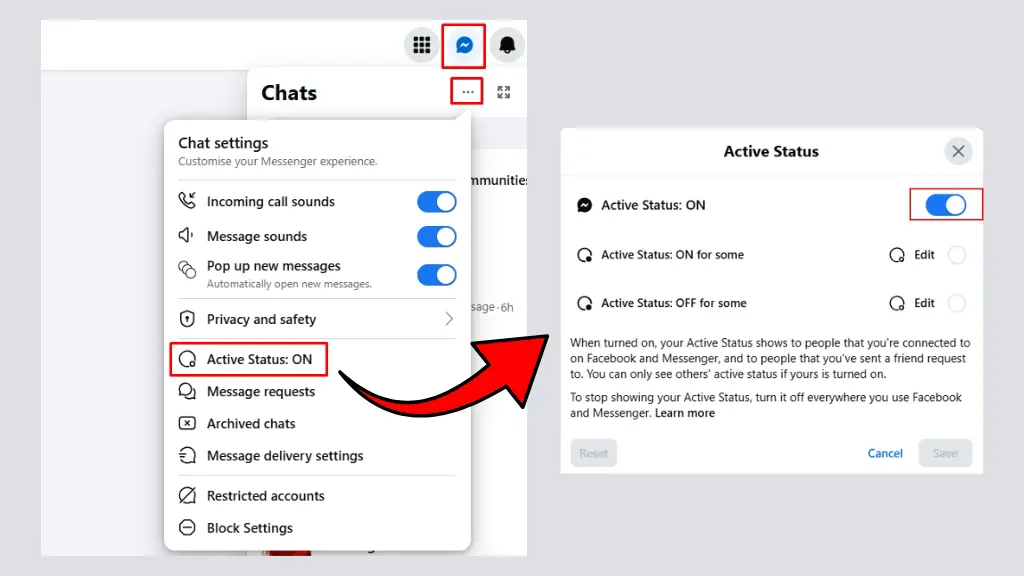
How to Turn Off Activity Status on Facebook on a Computer
If you use Facebook in a web browser, you can turn off your Activity Status in just a few clicks.
1) Open Facebook
Go to facebook.com and sign in to your account.
2) Open Messenger
Click the Messenger icon in the top-right corner of the page.
3) Open Messenger Settings
In the Messenger pop-up, click the three-dot (⋯) menu, then select Active Status.
4) Turn Off Activity Status
Toggle Show when you’re active to Off.
5) Confirm Your Choice
Click Save (if prompted). Your friends will no longer see when you’re active or recently active on Facebook.
Once it’s turned off, your active status won’t appear to other people who can normally see it.
Conclusion
One of the simplest ways to add some additional privacy is learning how to turn off Activity Status on Facebook. If you like to scroll in silence, if the pressure to reply straight away is too much for you, or even just because you want what you’re doing on the net to be under wraps, then this setting takes seconds to adjust.
Another thing to keep in mind is that when you turn your Activity Status off, you basically are turning it off for others as well, so if they can’t see when you’re active, they’re likely also not able to tell when a few friends of theirs are. If that trade-off is acceptable to you, it’s a quick setting that would make Facebook feel a bit more private every time you log in.