My cousin texted me last week, annoyed, because she kept missing friends by a few minutes and had no clue how to check who is online on Facebook properly. Turns out a lot of people don’t know either. Facebook used to be just a photo app back in the day. Today, Facebook has become one of the biggest platforms for businesses as well, which is why many brands work with a Social Media Marketing Agency to manage customer engagement and communication effectively. Now it’s where most of us actually talk to people, so knowing who’s around at a given moment isn’t a silly thing to want. Below is basically everything I told her, how to spot someone’s online status on the phone app, inside Messenger, and from a computer too.
What the Green Dot on Facebook Means
You’ve seen it. Small green circle, sits right on a profile picture. It means that person is active on Facebook or Messenger at that exact time. Simple in theory, and most people learn to recognize it without ever reading an explanation.
In practice, not every green dot tells the truth though. Some people turn this off in settings on purpose because they’d rather not be tracked constantly. So no dot doesn’t automatically mean offline, sometimes it just means the person didn’t feel like being visible right then. Something to keep in the back of your mind before you assume anyone’s ignoring you.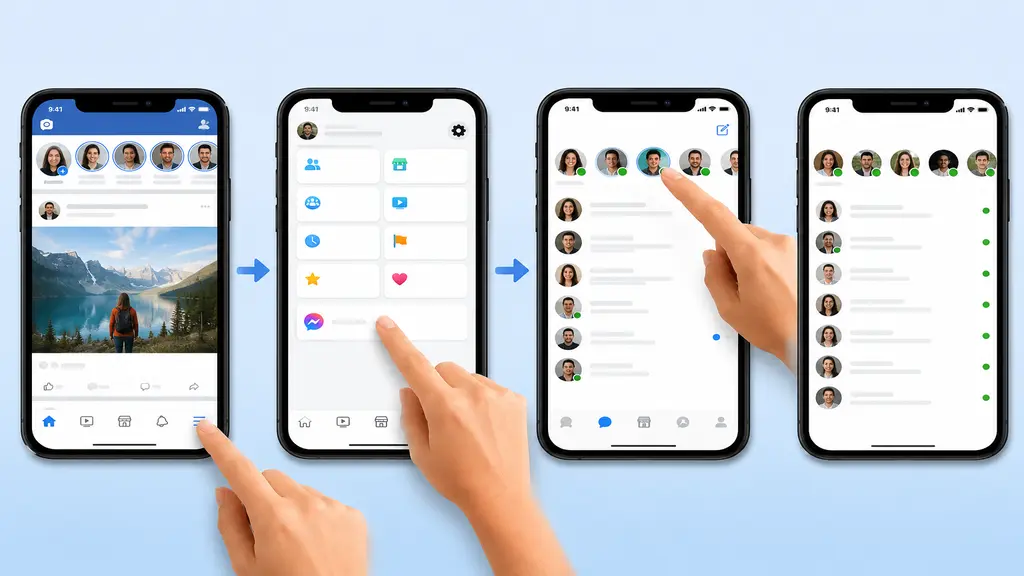
Checking Who’s Online on Facebook Through the Mobile App
Phones first, since that’s how most people use Facebook these days anyway. The app has a shortcut buried in the menu that most users never actually notice, even though they open Facebook every single day. It only takes a few taps once you know the path, and after the first time you’ll remember it without thinking.
- Open the app, log in if you haven’t already
- Tap the Menu icon, three lines, bottom right corner usually
- Go into Messenger from there, there’s a shortcut in that same menu
- Check the Active Now row up top, green dot next to a photo means online right now
Not much more to it than that.
Using Messenger by Itself to See Who’s Active
Some people skip the Facebook app completely and just use Messenger, especially if that’s the app they open first out of habit. Faster this way honestly, since you’re not scrolling past your feed or notifications to get there. It cuts out a step compared to going through the main app.
- Open Messenger, tap Chats
- Look at the corner of each profile photo, green circle means active
- Or open the People tab for a full list at once instead of just recent chats, handy if it’s been a while since you messaged someone but you still want to know if they’re around
How to Check Facebook Online Status on a Computer
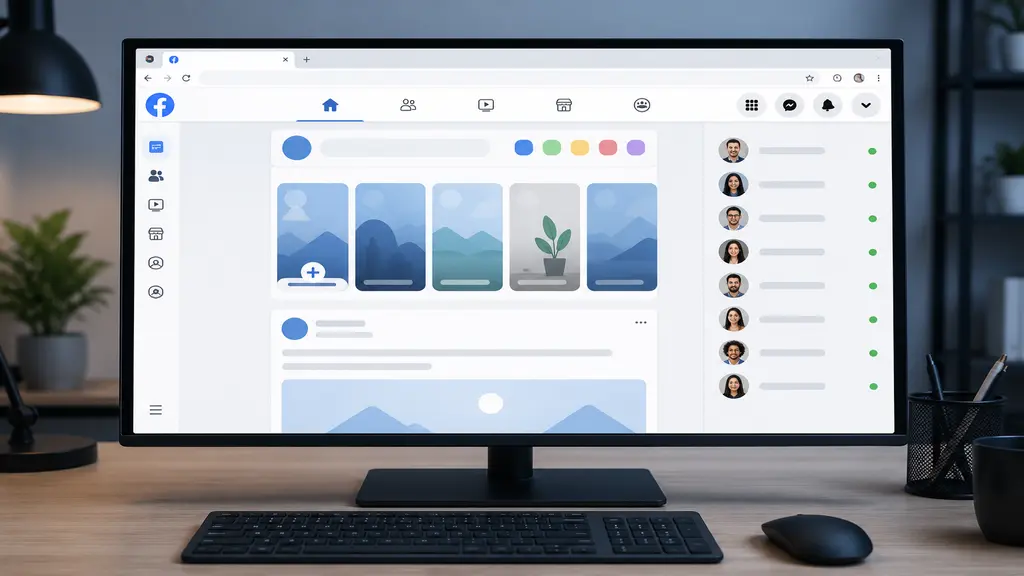
Also works fine on a laptop or desktop, sometimes even less cluttered than the app is. A lot of people assume this feature is mobile-only since Messenger gets all the attention, but the browser version has had it for years. It just sits in a slightly different spot, which is probably why fewer people notice it.
- Log into facebook.com in your browser
- Right side of the homepage has a Contacts or Chat list
- Green dot beside a name means active
- You can search someone directly too, their profile page sometimes shows it as well
Why Someone Might Not Show as Online
No green dot doesn’t always mean they’re not on Facebook, and this trips up more people than you’d think. Someone can be scrolling through their feed right now while showing up as completely offline to you. It usually comes down to a setting on their end rather than anything wrong on yours. A few common reasons this happens:
- They switched off Active Status themselves
- Their status is only visible to certain friends, not everyone
- Bad internet connection on their end, updates get delayed
- You’ve been blocked, so none of their activity shows up at all
Turning Your Own Active Status On or Off
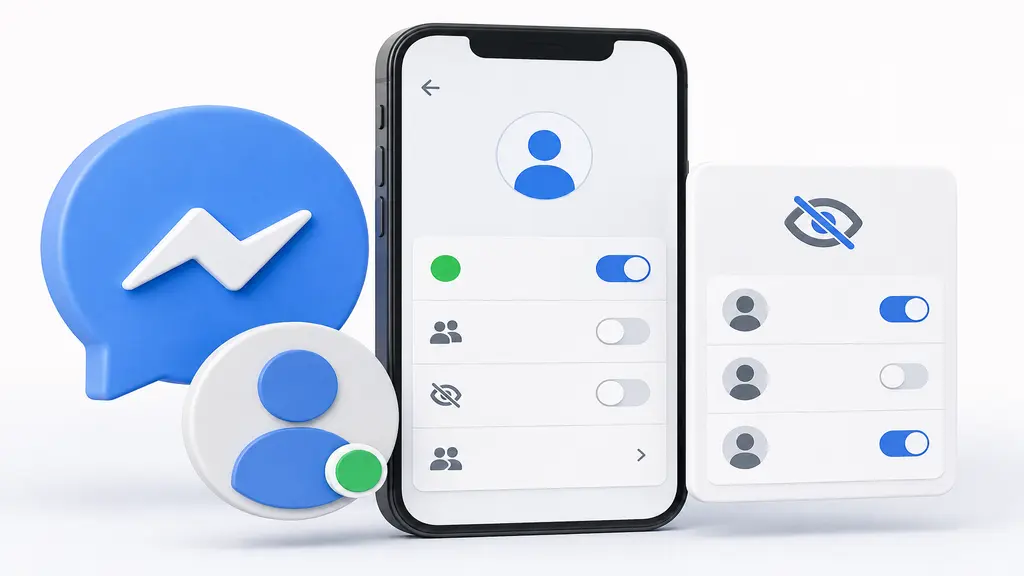
Since you now know how to check others, might as well control your own too. If you manage multiple Facebook profiles, here’s our guide on How to Open Another Account on Facebook safely. It’s a two-minute job once you find the setting, and most people set it once and forget about it entirely. Some prefer it fully off for privacy, others just hide it from a couple of specific people instead.
- Messenger, profile photo, Settings
- Find Active Status and switch it as you like
- There’s also an option to hide it from certain people only, not everyone, if that’s more your thing
Conclusion
That’s really the whole thing on how to check who is online on Facebook, app, Messenger, or browser, whichever you already use will work fine. Facebook and Messenger are also considered important communication channels among the many Tools of Digital Marketing businesses use today. Just don’t take the green dot too seriously since it’s not always accurate. People turn it off all the time, and that’s completely their choice to make. For small businesses using Facebook to connect with customers, having a proper Digital Marketing Agency for Small Business strategy can make communication much more effective.
Arafin Media will keep sharing more practical tips like this one.