
A few weeks ago a friend called me wanting help as he couldn’t understand why Facebook kept logging him out. He had a personal account, and a business account, and every time he wanted to check on one of them he’d sign out of the other. He did this a couple of times until he finally said, “Can’t you do that with one click?” There is.
Facebook has a feature that allows you to easily switch between multiple accounts without having to enter your email and password for the same every time. After setup, switching between accounts takes seconds.
For those of you who have been looking for how to add an additional account in Facebook, this is the complete guide. Regardless of whether you are on your phone using the Facebook app or if you are on Facebook inside your web browser, it is fairly simple.
Why Add Another Facebook Account?
There are plenty of reasons someone might need more than one account available on the same device.
For example:
- You manage both a personal and a business account.
- You help manage a family member’s account.
- You have separate accounts for different purposes (as long as they comply with Facebook’s policies).
- Multiple people use the same phone or computer.
Instead of logging in and out all day, you can simply switch between saved accounts.
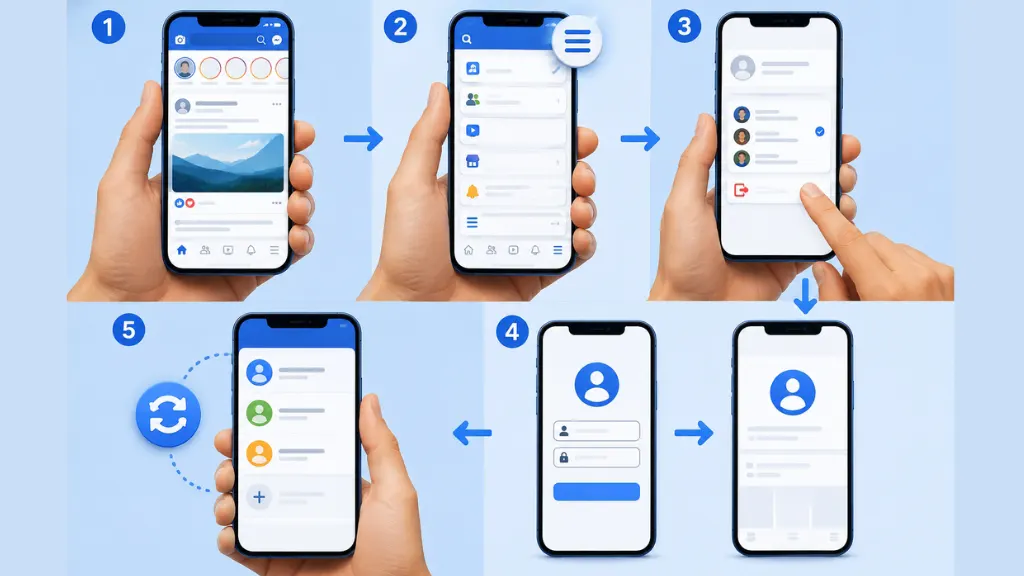
How to Add Another Account In FB on a Mobile
Most people use Facebook on their phones, so let’s start there.
1) Open the Facebook App
Launch the Facebook app on your Android or iPhone.
If you’re already signed in, you’ll see your Home Feed.
2) Open the Menu
Tap the Menu icon.
Depending on your device, it may appear in the bottom-right or top-right corner.
3) Go to Your Accounts
Scroll down until you see your account information.
If you’re already using multiple saved accounts, they’ll appear here.
If not, look for:
Log Out
After logging out, Facebook usually displays all saved accounts along with an option to add another one.
4) Tap “Add Account”
Select Add Account.
Enter the email address or phone number for the other Facebook account.
Then type the password.
Tap Log In.
Facebook saves the account on your device.
5) Switch Between Accounts
The next time you open Facebook, you’ll be able to choose between your saved accounts without entering your login details again.
That honestly saves a surprising amount of time if you switch accounts often.
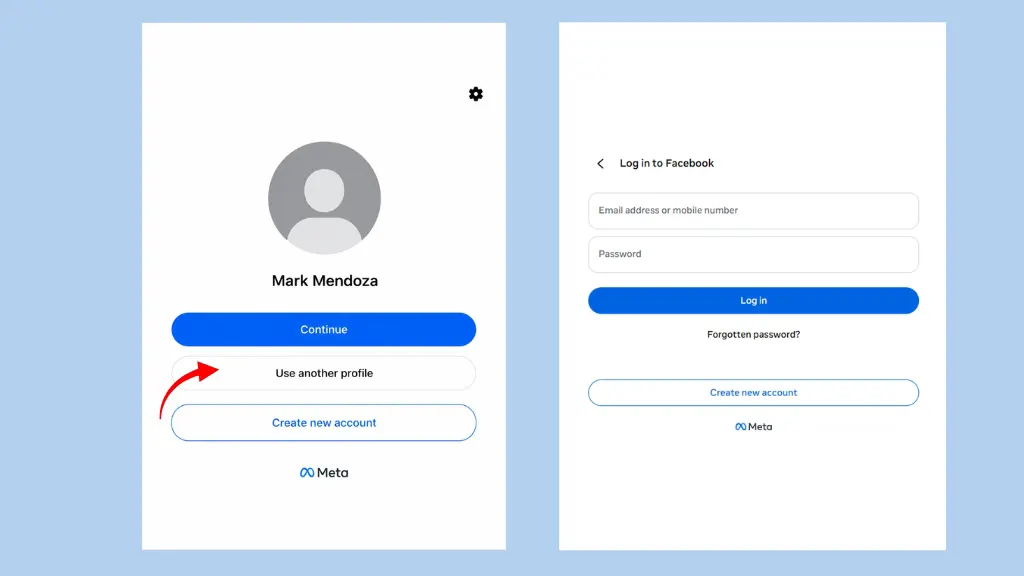
How to Add Another Account In FB on a Computer
If you normally use Facebook in a browser, the steps are slightly different.
1) Open Facebook
Open Facebook and sign in to your current account.
2) Click “Profile”
Click your profile picture in the upper-right corner.
3) Log Out Account
Choose Log Out.
4) Select “Use Another Profile”
On the login screen, click Use Another Profile and simply sign in with another Facebook account.
If you choose to save your login information, Facebook will remember the account for future use. The next time you visit Facebook, you can select the account you want to open.
Conclusion
Knowing the way to add another account in Facebook can assist handle quite a few sign ins so much simpler. Rather than have to sign out and back in every single time, it will allow you to save your accounts on the same machine and switch between them with a few taps or clicks.
If you look up a business Page, are on your phone helping out a family member and potentially need to switch back just before Facebook boots you into an empty browser on another device, then soak it in for two minutes now—or suffer later. Just do not forget to comply with account policies of Facebook and keep at all times safe your login credentials.