
If you run a WordPress website, mastering core data such as where your visitors come from, how long they stay on your site, and which pages get the most traffic can provide solid, accurate support for your operational decisions. This article will teach both total beginners and experienced operators how to integrate Google Analytics into your website.
What Is Google Analytics?
Google Analytics is a free web analytics tool that helps website owners analyze how their visitors interact with their websites by providing them with easy and accessible information about website traffic and visits․
Google Analytics can track the following:
- Number of visitors
- Traffic sources
- Most visited pages
- User engagement
- Device types
- Conversion goals
This helps you improve your content‚ your marketing campaigns‚ and your overall website performance․
How to add Google Analytics to WordPress
Go to the Google Analytics website and sign in with your Google account. If this is your first time using Google Analytics, click Start Measuring to create a new account.
Create a Property
A property represents the website you want to track.
During setup:
- Enter a property name.
- Select your time zone.
- Choose your preferred currency.
- Click Next.
Create a Web Data Stream
Google Analytics 4 (GA4) uses data streams to collect website data.
To create a web stream:
- Select Web.
- Enter your website URL.
- Add a stream name.
- Click Create Stream.
Find Your Measurement ID
After creating the stream, you’ll see a Measurement ID that looks similar to:
G-XXXXXXXXXX
You’ll need this ID when connecting Google Analytics to WordPress.
Add Google Analytics to WordPress
There are several ways to install Google Analytics on WordPress. The easiest method is using a plugin. There are three ways mentioned here: one is the Site Kit plugin, the other is the WPCode plugin, and the other is by manually placing the code in the theme file editor header portion in WordPress.
Verify That Google Analytics Is Working
After installation, you should confirm that tracking is active.
Check Real-Time Reports
- Open Google Analytics.
- Go to Reports → Realtime.
- Visit your website in a new browser tab.
If everything is configured correctly, your visit should appear in the report within a few minutes.

Method 1: Use Site Kit by Google
Site Kit is Google’s official WordPress plugin. It allows you to connect Analytics and other Google services directly from your dashboard.
Install Site Kit
- Log in to WordPress.
- Navigate to Plugins → Add New Plugin.
- Search for Site Kit by Google.
- Install and activate the plugin.
Connect Your Google Account
After activation:
- Open Site Kit.
- Click Start Setup.
- Sign in with your Google account.
- Grant the required permissions.
- Select your Analytics property.
Once connected, Site Kit automatically installs the tracking code on your website.
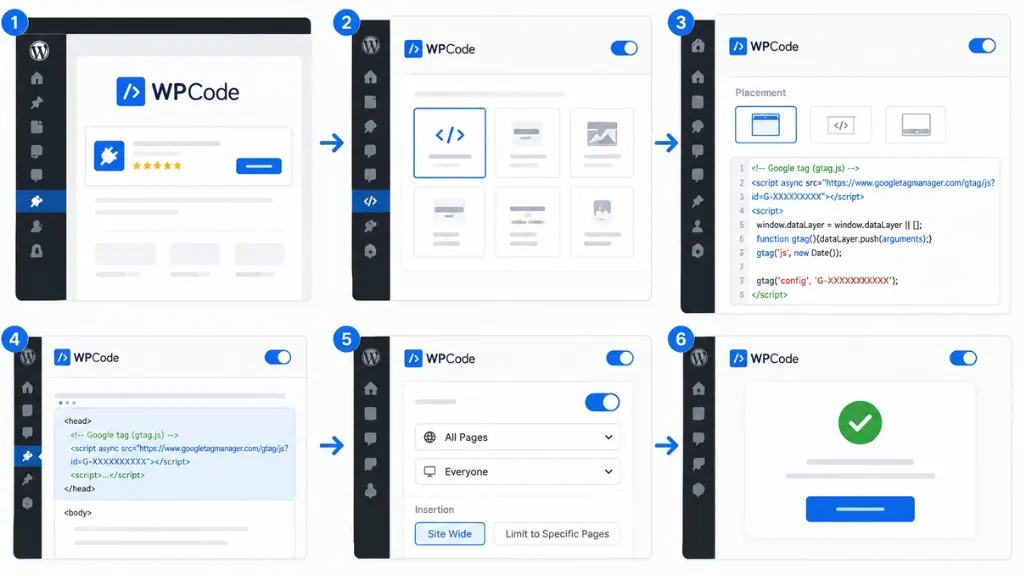
Method 2: Add Google Analytics Using WPCode
If you prefer not to use Site Kit, WPCode offers a simple way to insert the tracking code.
Install WPCode
- Go to Plugins → Add New Plugin.
- Search for WPCode.
- Install and activate the plugin.
Add the Tracking Code
- Copy the Google Analytics tracking code from your Analytics account.
- Open Code Snippets → Header & Footer.
- Paste the tracking code into the Header section.
- Save your changes.
Your website will now send data to Google Analytics.
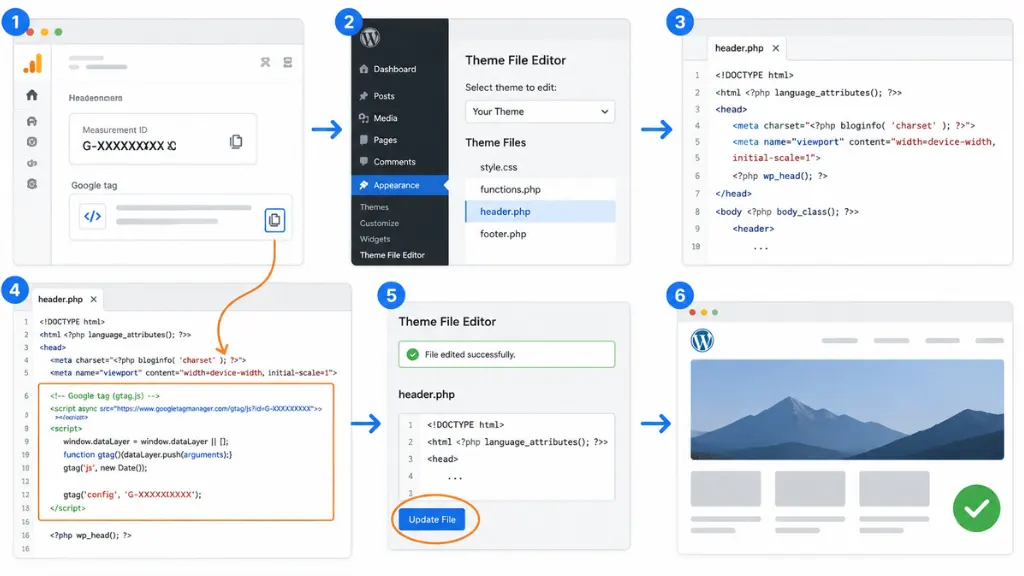
Method 3: Add Google Analytics Manually
Advanced users can add the tracking code directly to their theme files.
Edit the Header File
- Open Appearance → Theme File Editor.
- Locate the header.php file.
- Paste the Google Analytics code before the closing </head> tag.
- Save the file.
Keep in mind that theme updates can overwrite your changes. For this reason, plugins are usually the safer option.
Conclusion
Google Analytics is one of the first tools every website owner must add to WordPress. This tells you how visitors interact with your site, where they come from, and what content performs well.
The simplest way to go about it is by using Site Kit by Google for the majority of users. If you want more control, there’s also WPCode or the option to do this manually.
Once integrated with Google Analytics, you would have data to make your site even better, increase traffic, and run campaigns based on what users actually do on your website.