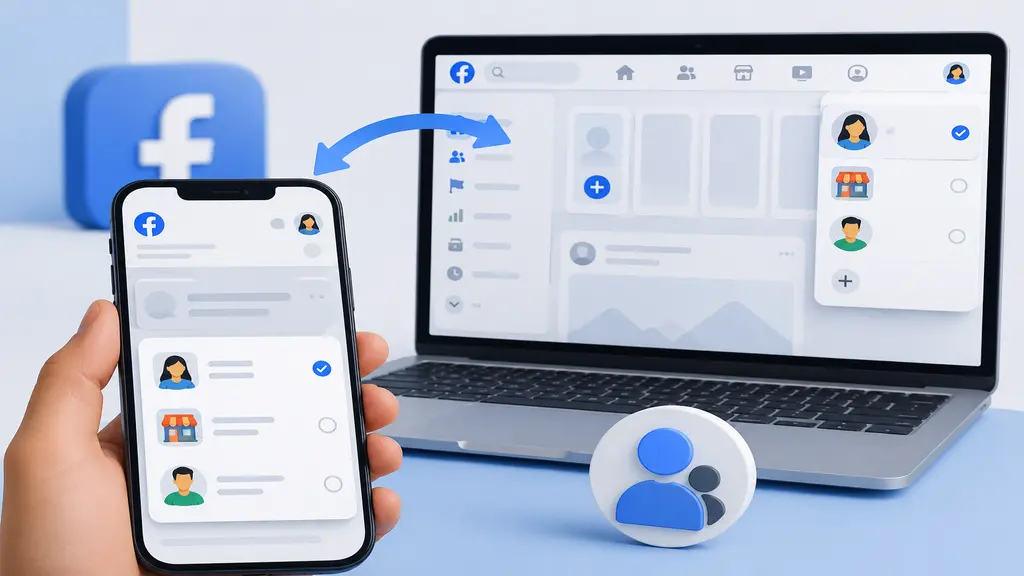
“How do I switch accounts on Facebook?” — this question pops up more often than you’d think. Especially now, when almost everyone’s juggling at least two profiles. One for personal stuff, one for business, maybe a third for something you’re not even sure why you made. Sound familiar? If you’re managing a page for your business and your own personal timeline separately, switching between the two shouldn’t eat up your time. It really doesn’t have to. Once you know where the button actually is (it moves around more than you’d expect), the whole thing takes less than ten seconds. This guide breaks down how to switch accounts on Facebook — mobile, desktop, and what to do when it just won’t cooperate.
Why You Might Need to Switch Accounts on Facebook
Truth is, there’s no single reason people end up with multiple Facebook logins. For some it’s practical. For others, honestly, it just happened over time. Maybe you’re handling Arafin Media’s client pages and keeping your personal account completely separate — smart move, by the way, keeps things from getting messy. Or maybe you’ve got a Marketplace-only account just for local buying and selling. Facebook actually thought this through and built a switching feature for exactly this kind of situation. No need to log out every time. That alone saves a surprising amount of frustration.
A few situations where this comes up a lot:
- Managing a business page alongside a personal profile: Small business owners tend to keep these apart so client-facing content doesn’t end up mixed with birthday photos and random personal posts.
- Running multiple client accounts: If you’re in social media management (like a lot of us at agencies are), you could be switching accounts five, six times before lunch.
- Keeping a backup account for testing: Some marketers use a spare login just to see how a post actually looks before it goes live on the real page. If you need to open another Facebook account, you can set up a separate login for that purpose.
- Family members sharing one device: The classic shared tablet situation. Everyone’s got their own login, nobody wants to see everyone else’s notifications.
How Do I Switch Accounts on Facebook on Mobile (Facebook App)
Since most people are on their phones anyway, let’s start there first. Once you’ve done this a couple times, it becomes muscle memory — genuinely.
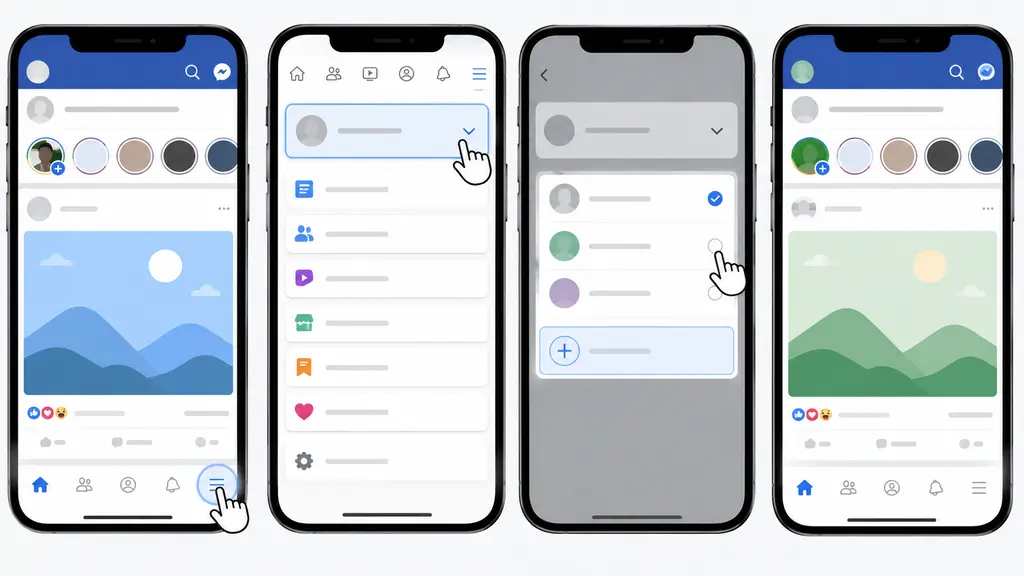
- Open the Facebook app and tap the menu icon: On iPhone it’s usually bottom right (three lines stacked). Android users, it sometimes shows up top right instead — Facebook likes to shuffle this around every update or two, so don’t stress if it’s not exactly where you last saw it.
- Tap your name at the top after scrolling down: A small dropdown appears showing every account you’ve already added on that device.
- Tap “Switch” beside whichever account you need: Not added yet? There’s an option right there to add another Facebook account — just enter the email or phone number and password.
- Give it a second to reload: The app refreshes and pulls up that account’s feed and notifications. Sometimes it’s instant, sometimes it takes a beat longer depending on your connection.
Worth mentioning — once you’ve added an account this way, you won’t need to type the password again next time. Facebook saves it locally. Convenient, sure, but if it’s a shared or public phone, keep that in mind before adding anything sensitive.
How Do I Switch Accounts on Facebook on Desktop (Browser)
Desktop works a little differently, though it’s honestly just as fast — maybe faster, once your accounts are already saved.
- Click your profile picture, top right corner: This pulls up the account menu with your name and photo sitting right at the top.
- Select “Switch Accounts”: If you’ve logged in before, previous accounts show up in a list right there — no retyping needed.
- Click whichever account you want: Facebook logs you in almost instantly, assuming it was saved earlier.
- Need to add a new one? Click “Add Existing Account”: Type in the details, and it’s saved for next time automatically.
Small tip: Chrome and Firefox tend to remember multiple Facebook logins even after a full browser restart. So really, you only go through the entire login process once per account — after that, it’s just clicking.
What to Do If You Can’t Switch Accounts
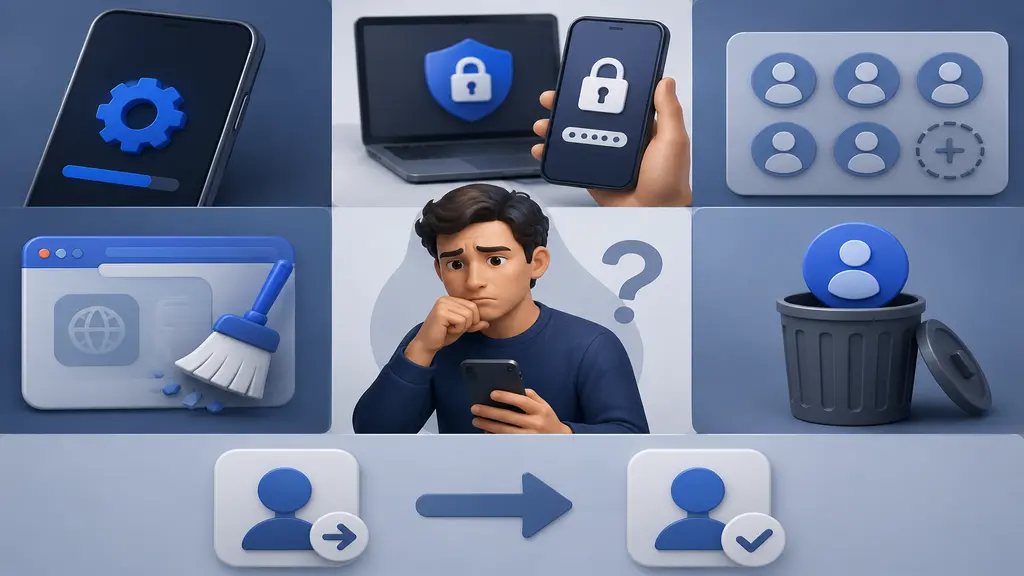
Sometimes it just refuses to work, and that’s more irritating than it has any right to be. A few usual suspects:
- Outdated app version: Facebook pushes updates constantly, and older app versions occasionally drop features like this or make them buggy.
- Login approvals or two-factor authentication: If one account has extra security turned on, you may need to approve the login from another device before the switch actually goes through.
- Hit the account limit: Facebook caps this around five accounts per app. Maxed out? You’ll need to remove one before adding a new login.
- Browser cache acting up: On desktop especially, clearing cookies and cache for facebook.com fixes more switching glitches than you’d expect.
If nothing above works — and occasionally nothing does — just log out completely and log back in the old-fashioned way. Not elegant. Works every time though.
A Few Extra Tips for Managing Multiple Accounts Smoothly
Since we’re already deep into this topic, a couple more things worth knowing.
Turning on separate notifications for each account helps you avoid missing something important buried under the wrong profile. You can also check who is online on Facebook when you need to see whether someone is currently active. And if you’re handling business pages regularly, Facebook’s Business Suite is often a better call than constantly switching your personal login back and forth — it keeps things a lot tidier, which matters a lot when you’re managing pages for actual clients, as we do here at Arafin Media.
Conclusion
At the end of the day, figuring out how do I switch accounts on Facebook comes down to a few taps — nothing more complicated than that. Once it’s set up on your device, moving between a personal profile and a business account becomes second nature. You stop even thinking about it. Run into trouble along the way? Updating the app or clearing the browser cache handles most issues. Hopefully this cleared up any confusion and made the whole process feel a little less annoying.